
Automate Invoice Processing With AI Without a New ERP
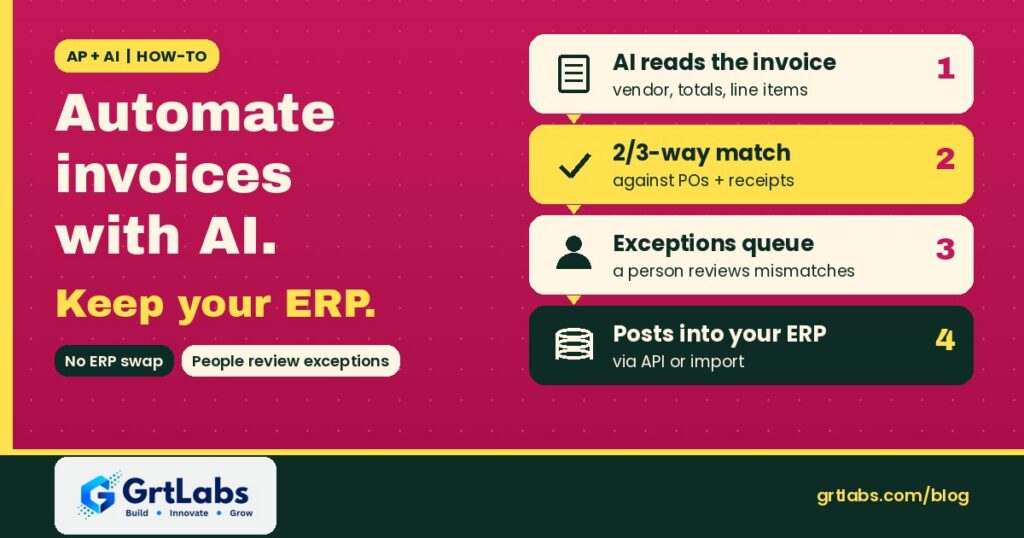
Automate Invoice Processing With AI Without a New ERP https://grtlabs.com/wp-content/uploads/2026/11/featured-automate-invoice-processing-with-ai-1024x538.jpg 1024 538 Nadeem Shaikh https://secure.gravatar.com/avatar/459d5135d86aff60790fdf4d25ee6958e526211d5cd43d190b1516158cf9feba?s=96&d=mm&r=gDoes AI invoice processing need a new ERP? No. The usual way to automate invoice processing with AI is to leave your ERP exactly where it is and add a layer in front of it: AI reads each invoice, pulls out the vendor, totals and line items, checks them against the purchase order and the goods receipt, sends anything that does not match to a person, and then posts the clean invoice into the ERP through its API or its normal import. Your ERP stays the system of record for vendors, POs, approvals and payments.
This is a practical how-to for finance, AP and operations leads. If you want the bigger picture of how AI reads documents of all kinds, start with our guide to intelligent document processing. This post is narrower: how to plug that kind of pipeline into the ERP you already run, step by step, and what to watch for.
Why you don’t need to replace your ERP
The slow part of most AP work is not the ERP. It is everything that happens before an invoice reaches it: opening email attachments, re-keying header and line data, hunting for the matching PO, chasing someone to confirm the goods arrived, and fixing typos. That is exactly the part AI is good at.
Your ERP, on the other hand, already holds what the AI needs to check against: the vendor master, open purchase orders, receipts, GL codes, tax rules and approval limits. Replacing it to get AI would mean re-doing all of that. Connecting to it means you keep your data, your controls and your audit history, and you add automation on top.
Our AI Automation service is built around the same idea. When clients ask whether they need to replace current systems, the answer is no: we connect the tools you already use.
What the AI does and what your ERP keeps doing
| Step | AI layer | Your ERP |
|---|---|---|
| Receive invoices | Watches the AP inbox, upload folder or portal | — |
| Read and extract | Vendor, invoice number, dates, totals, tax, line items | — |
| Look up data | Reads vendors, open POs and receipts | Source of truth for this data |
| Match | Runs 2-way or 3-way match within your tolerances | Holds the tolerance rules if you already set them |
| Exceptions | Routes mismatches to a reviewer with context | — |
| Post | Creates the invoice through API or import | Records the invoice, approvals and GL entries |
| Pay | — | Payment runs stay where they are today |
In short: the AI does the reading, checking and routing. The ERP does the accounting.
How to automate invoice processing with AI, step by step
1. Map how invoices flow today
Write down where invoices arrive (one AP mailbox, several inboxes, a supplier portal, paper scans), who touches them, and where they stall. Note which invoices have a PO and which do not, such as utilities or subscriptions. That split decides how much matching you can automate.
2. Collect a real sample
Pull a few weeks of real invoices from many vendors, including the messy ones: scans, multi-page invoices, credit memos and invoices with freight or fees. You will test on these, not on clean demo files.
3. Define the fields and rules
List the fields you need at header level (vendor, invoice number, date, due date, currency, subtotal, tax, total, PO number) and at line level (item, quantity, unit price, amount). Then write the rules in plain language: which vendors need a 3-way match, what counts as a duplicate, which GL code applies when there is no PO.
4. Set up extraction
Modern AI document pipelines read each page in context, so one pipeline can handle invoices from many senders without a template per vendor. Every field should come with a confidence score, and low-confidence fields should be flagged rather than guessed.
5. Connect read access to the ERP
Give the pipeline read access to the vendor master, open POs and receipts. This is what lets it say “this invoice matches this open PO and this receipt” instead of just producing a spreadsheet.
6. Build the exceptions queue
Design the screen where a person reviews mismatches, missing POs and low-confidence fields. More on this below, because it decides whether the project works.
7. Post into the ERP and run in parallel
Start by creating invoices as drafts or on hold in the ERP, run alongside your current process for a few weeks, compare results, and only then let clean, matched invoices flow through on their own.
2-way and 3-way matching against POs and receipts
Matching is where AI invoice processing earns its keep, and your ERP vendor already defines the terms. Microsoft’s Dynamics 365 Finance documentation describes invoice matching as “the process of matching vendor invoice, purchase order, and product receipt information.”
- 2-way match: invoice price against the purchase order price.
- 3-way match: the same price check, plus invoice quantity against the quantity actually received.
- Tolerances: small differences are allowed within limits you set. In the same Microsoft documentation, a difference that exceeds the tolerance becomes a matching discrepancy.
Keep the rules you already trust. If your ERP holds tolerances, the AI layer should read and follow them, not invent new ones. The AI’s job is to get clean data and the right PO and receipt in front of those rules, and to explain any mismatch in plain words, such as “billed 120 units, 100 received.”
Build an exceptions queue people actually use
No pipeline will clear every invoice. What matters is how fast a person can deal with the ones it can’t. A good exceptions queue shows:
- The invoice image next to the extracted fields, with low-confidence fields highlighted.
- The matched PO and receipt lines, with the exact difference called out.
- A suggested action (approve within tolerance, request a credit, send to the buyer) that the reviewer accepts or changes.
- One-click routing to the buyer or approver who can answer the question.
- A log of who changed what and why, so audit and month-end are easy.
Corrections from reviewers should feed back into rules and prompts, so the same mistake shows up less often. For how to log AI decisions properly, see our post on the AI agent audit trail.
Getting invoice data into your ERP: API, import or RPA
There are three common ways to post into an ERP you already own. Pick the most stable one your system supports:
- API: the cleanest option. Many ERPs and cloud accounting tools expose APIs for vendor invoices or bills, so the pipeline can create the record, attach the PDF and set it to on hold or ready to post.
- Import file: many ERPs accept a CSV or XML import. The pipeline writes the file on a schedule and the ERP imports it with its own validation.
- RPA as a last resort: when an older system has no API and no import, a bot can type into the screens. It works, but it breaks when screens change. Our post on AI agents vs RPA explains the trade-off.
Whichever route you use, the ERP still applies its own checks and approvals. That is a feature: the AI never gets around controls your auditors already rely on.
Check what your ERP already offers
Before you build anything, check whether your ERP vendor has an add-on that covers your case. For example, Microsoft offers an Invoice capture solution for Dynamics 365 Finance, which it describes as one that “automatically creates vendor invoices from digital invoice images.”
If a built-in tool handles your vendors and rules, use it. A custom pipeline makes sense when invoices arrive in many shapes across several systems, when you need matching logic the add-on does not support, when data has to stay in your own cloud account, or when you run an ERP without such a feature. Our guide on off-the-shelf AI vs custom AI walks through that decision.
A simple rollout plan
- Discovery: map the process, gather sample invoices, agree on fields, rules and how you will measure success.
- Pilot one invoice stream: for example, PO-backed invoices from your top vendors, arriving in one mailbox.
- Shadow mode: the pipeline extracts, matches and drafts, but people still post. Compare its results to theirs.
- Assisted mode: matched invoices post as drafts or on hold; reviewers approve them in batches.
- Straight-through for clean matches: only invoices that pass every rule post on their own. Everything else stays in the queue.
- Expand: add vendors, non-PO invoices, credit memos and other inboxes one at a time.
Measure what you can see in your own data: how many invoices go straight through, how long exceptions wait, and how many corrections reviewers make. Our AI readiness assessment post covers what to check before you start.
Common mistakes to avoid
- Automating payment before posting is stable. Get extraction and matching right first. Payment runs can stay as they are.
- Testing on clean samples only. Your worst scans and odd vendor layouts are what break pipelines.
- Letting the AI make up its own rules. Tolerances, GL coding and approval limits should come from your ERP and your finance team.
- No duplicate check. Check vendor plus invoice number plus amount against invoices already in the ERP before posting.
- Auto-accepting vendor bank detail changes. A changed bank account on an invoice should always go to a person. The FBI’s IC3 recommends using secondary channels or two-factor authentication to verify requests to change account information.
- A queue no one owns. Name who works exceptions every day, or they pile up.
- No plan for change. Vendors change layouts and models get updated. Someone has to watch accuracy after launch. The NIST AI Risk Management Framework is a useful, voluntary checklist for managing that risk.
How GrtLabs helps you automate invoice processing
GrtLabs is a Houston AI lab and software development company, founded in 2019. Our Document Intelligence service builds pipelines that classify, extract and validate data from invoices and purchase orders, match invoice data to POs, route exceptions to people for review, and deliver clean records into your ERP, CRM, e-commerce or finance tools through APIs, databases or file exchanges. Our AI Automation service connects the systems you already use, with exception paths, alerts and dashboards for your team.
We can run the pipeline inside your own AWS or Azure account with access controls you own. In one project we automated PDF purchase order processing for a Shopify enterprise using a self-hosted model, because the client’s data could not go to external AI APIs. Most engagements start with AI Discovery, a focused 2–3 week engagement that ranks use cases and picks the right first proof of concept; the roadmap is yours whether or not you build with us. See how we work on our AI development company in Houston page.
Have invoices piling up in front of your ERP? Talk to our Houston team or see our Document Intelligence service.
Frequently asked questions
Does AI invoice processing need a new ERP?
No. AI invoice processing usually sits in front of the ERP you already run. It reads and checks invoices, then posts them into the ERP through its API or import. The ERP stays the system of record for vendors, purchase orders, approvals and payments.
How does AI match invoices to purchase orders and receipts?
The AI extracts the invoice header and line items, looks up the open purchase order and goods receipt in your ERP, and compares price (2-way match) and price plus received quantity (3-way match) against the tolerances you set. Anything outside tolerance goes to a reviewer with the difference explained.
What happens when an invoice does not match?
It goes to an exceptions queue. A reviewer sees the invoice image, the extracted fields, the matched PO and receipt lines and the exact difference, then approves it, corrects it or routes it to the buyer. Every decision is logged.
Can AI process invoices that have no purchase order?
Yes, but with different rules. Non-PO invoices such as utilities or subscriptions can be coded from vendor history and your GL rules, then routed to the right approver. Most teams automate PO-backed invoices first and add non-PO invoices later.
How do you connect AI invoice processing to an older ERP?
Use its API if it has one. If not, many ERPs accept a CSV or XML import that the pipeline can write on a schedule. Screen automation (RPA) is a last resort for systems with neither, because it breaks when screens change.
How long does it take to automate invoice processing with AI?
It depends on your invoice volume, vendor mix and ERP. A sensible path is a short discovery phase, a pilot on one invoice stream run in parallel with your current process, and then a gradual move to straight-through posting for clean matches. At GrtLabs, AI Discovery typically takes 2 to 3 weeks.
