
How IDP Reads a Form: Fields, Checkboxes and Handwriting
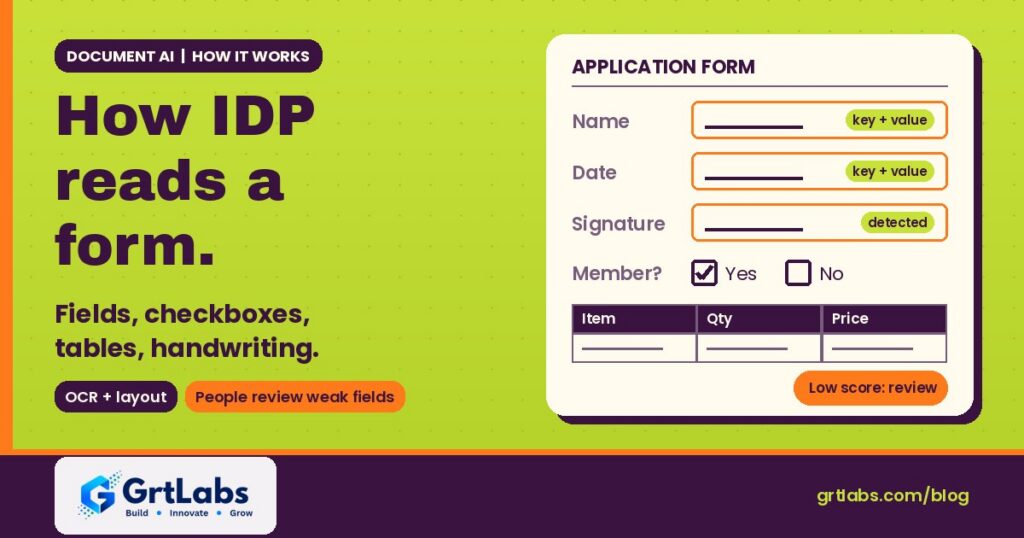
How IDP Reads a Form: Fields, Checkboxes and Handwriting https://grtlabs.com/wp-content/uploads/2026/11/featured-how-idp-reads-a-form-1024x538.jpg 1024 538 Nadeem Shaikh https://secure.gravatar.com/avatar/459d5135d86aff60790fdf4d25ee6958e526211d5cd43d190b1516158cf9feba?s=96&d=mm&r=gHow does intelligent document processing identify fields in forms? Here is how IDP reads a form, in plain words: it turns the page into text with OCR (typed and handwritten), maps the layout so it knows which words are labels, which are answers, which boxes are ticked and where the tables are, links each label to its value (for example “Name:” to “Ana Carolina”), maps those pairs to the fields your business needs, and gives every value a confidence score. Values that pass your rules go into your systems. Low-confidence or odd values go to a person.
Our guide to intelligent document processing covers what IDP is, which documents it handles and how it differs from plain OCR. This post goes one level deeper: what happens to a form between the scanner and your database, and where it goes wrong. We quote the public docs of Azure AI Document Intelligence, Amazon Textract and Google Document AI so you can check every claim.
How IDP reads a form: the six stages
| Stage | What happens | What can go wrong |
|---|---|---|
| 1. Read the text | OCR turns the image into words and lines, typed and handwritten | Blurry scans, tiny print, faint handwriting |
| 2. Map the layout | Finds paragraphs, tables, checkboxes, headers and signatures | Merged table cells, tables split across pages |
| 3. Find key-value pairs | Links each label to its answer | Labels far from values, answers in the wrong box |
| 4. Map to your fields | Turns “DOB” or “Date of birth” into your birth_date field | New form versions the model has not seen |
| 5. Score confidence | Gives each word, field, checkbox and table cell a score | Treating a high score as a guarantee |
| 6. Validate and review | Checks values against rules and your data, sends the rest to a person | No owner for the review queue |
Most tools run stages 1 to 3 the same way. The big differences between products, and between a good and a bad project, are in stages 4 to 6.
Stage 1: turning the page into text, including handwriting
Everything starts with OCR. Amazon says its Textract service can “detect typed and handwritten text” in documents such as financial reports, medical records and tax forms. Microsoft’s layout model extracts print and handwritten-style text as lines and words, flags handwritten lines in a styles collection, and gives each word its own confidence score.
Image quality matters more than most teams expect. Microsoft’s documentation asks for “one clear photo or high-quality scan per document” and sets a minimum text height of 12 pixels on a 1024 x 768 image, which it says is about 8-point text at 150 dots per inch. In practice:
- Scan at a resolution where the smallest print on the form is still sharp.
- Fix skewed and upside-down pages before or during processing. Layout models report page rotation, so your pipeline can catch it.
- Handwriting support depends on the language, so confirm the languages on your forms are supported.
Stage 2: reading the layout, tables and checkboxes
A form is not just text. It has a structure, and IDP has to see it. Microsoft describes two kinds of layout roles: geometric roles such as text, tables, figures and selection marks, and logical roles such as titles, headings and footers.
- Checkboxes and radio buttons. Textract detects selection elements such as option buttons, check boxes, and underlined or circled text, both in form data and inside tables. Google’s Form Parser extracts checkboxes as key-value pairs, using the text nearest the checkbox, with a value type that says whether it is filled or unfilled.
- Tables. Line items, schedules and repeating sections live in tables. Textract extracts cells, merged cells, column headers, titles, footers and summary cells, and tells you whether a table is structured or semistructured.
- Signatures. Microsoft’s custom neural model supports signature detection, which helps when a form is only valid if it is signed.
If your forms have tables that spread over two pages, test that case on purpose. Microsoft notes that a row split across pages can get lower row confidence, because it looks different from other rows.
Stage 3: finding fields with key-value pairs
This is the heart of how IDP reads a form. Textract’s documentation gives a simple example: in the text “Name: Ana Carolina” it can identify a key (Name:) and a value (Ana Carolina).
Two details are worth knowing before you build:
- Values come back as written. Textract notes that dates found through key-value detection are returned exactly as detected on the document. Your pipeline still has to normalize them into one format.
- You can ask for a field by question. Textract also supports queries: you ask something like “What is the policy number?” and get the answer, its location on the page and a confidence score. If no answer is found, the response is left blank instead of guessed.
Stage 4: mapping to your fields (templates, trained models or generative AI)
Key-value pairs are generic. Your business needs specific fields with fixed names. There are three common ways to bridge that gap, and the vendors are clear about when each one fits.
| Approach | How it works | Best fit (per vendor docs) |
|---|---|---|
| Template | Relies on the same visual layout every time | Fixed forms, such as questionnaires, applications or tax forms with a fixed layout |
| Trained (custom) model | Learns your fields from labeled samples | Similar forms that vary by year or vendor; structured, semi-structured and unstructured documents |
| Generative / foundation model | A large pre-trained model, tuned or prompted with your schema | Variable layouts such as contracts, invoices, bank statements and bills of lading |
Microsoft says its custom template model “relies on a consistent visual template,” and that a custom extraction model needs only five examples of the same form type to get started. It recommends starting with a neural model and testing whether it meets your needs. Google’s custom extractor offers all three modes and says that because foundation models typically need fewer training documents, they are recommended as the first option for all variable layouts.
The practical rule: if you control the form and it never changes, a template is fine. If forms come from outside (vendors, patients, customers, other agencies), start with a trained or generative approach and test on real samples.
When every vendor’s form looks different
Invoices, packing slips and supplier forms are the classic hard case, because no two senders use the same layout. Microsoft’s accuracy and confidence guidance gives advice that applies to any tool:
- Include every variation you expect in your training or test set, such as digital and scanned PDFs, with at least five samples of each type.
- If document types look very different, train separate models and combine them, rather than forcing one model to learn everything.
- Remember that “a document set can look similar when viewed by humans but appear dissimilar to an AI model.”
If your goal is invoices specifically, our step-by-step guide on how to automate invoice processing with AI without a new ERP covers matching to purchase orders and posting into the ERP.
Splitting scanned bundles into separate documents
Teams often scan a whole packet into one PDF. Before IDP can read the form, it has to know where each document starts and ends. Google’s custom splitter is built for exactly this, splitting composite files into single documents; its example is a mortgage package with an application, income verification and a photo ID.
Watch the settings. In Microsoft’s v4.0 API the custom classification model does not split documents by default: you have to set splitMode to auto if one file can contain several documents. A pipeline that skips this step will read three documents as one long, confusing form.
Confidence scores and human review
Every good IDP tool returns confidence scores, and they are how you decide what is safe to automate. Microsoft explains that a confidence of 0.95 means the prediction is likely correct 19 out of 20 times, and that when accuracy is critical, confidence can be used to automatically accept a prediction or flag it for human review.
- Check more than one score. Microsoft points out that OCR (read) confidence and field extraction confidence are separate, so you should check both. Checkboxes and table cells have their own scores too.
- Set thresholds per field. A wrong middle initial is a nuisance. A wrong bank account or dosage is a real problem. Set stricter thresholds, or always require review, for fields that carry risk.
- Treat scores as signals, not proof. Validate values against rules and your own data: does the ZIP code match the city, does the member ID exist, is the date in the past? Log every correction. Our post on the AI agent audit trail shows what to record.
Checklist: questions to ask before you pick an IDP tool
- Does it read handwriting in the languages your forms use?
- Does it return checkboxes as filled or unfilled, with a confidence score?
- How does it handle tables, merged cells and tables that run across pages?
- Can it split a scanned bundle into separate documents?
- Do we need a template, a trained model or a generative model for our forms?
- Does it return confidence per word, field, checkbox and table cell?
- Where do low-confidence fields go, and who reviews them?
- How does the extracted data reach our ERP, CRM or database?
- Who watches accuracy after launch, when forms change?
For a broader view on build vs buy, see off-the-shelf AI vs custom AI.
Common mistakes when automating form reading
- Testing on clean samples only. Your worst faxes and phone photos are what break pipelines.
- One threshold for every field. Risky fields need stricter rules or always a person.
- No plan for new form versions. When a form changes, accuracy can drop quietly. Track corrections over time. The NIST AI Risk Management Framework, which is intended for voluntary use, is a useful checklist for this kind of ongoing risk.
If you control the form, skip the scan
The easiest form to read is one that was never on paper. If you design the form yourself, collecting answers online gives you clean, typed data from the start, with required fields and validation. Our GRTforms online form builder does this, with conditional logic, a submissions inbox, exports to Excel, CSV or PDF, and webhooks to send each response to your other tools. See our guide on how to create an online form. Keep IDP for the documents you do not control: vendor invoices, signed paper forms, faxes and scanned packets.
How GrtLabs helps
GrtLabs is a Houston AI lab and software development company, founded in 2019. Our Document Intelligence service combines OCR, large language models and business rules to read incoming documents, identify their type, pull out the fields you need, check them against your data and push clean records into your ERP, CRM, e-commerce or finance tools. Low-confidence fields are flagged for review, and human-in-the-loop review screens, monitoring and logging are part of what we deliver.
We can run the pipeline inside your own AWS or Azure account. In one project we automated PDF purchase order processing for a Shopify enterprise. If you are not sure where to start, AI Discovery is a focused 2–3 week engagement that ranks use cases and picks the right first proof of concept, and the roadmap is yours whether or not you build with us. Learn more on our AI development company in Houston page.
Have forms piling up that someone still re-types? Talk to our Houston team or see our Document Intelligence service.
Frequently asked questions
How does intelligent document processing identify fields in forms?
It runs OCR to read the text, maps the page layout, and links each label to its value as a key-value pair, for example Name: to the name written next to it. It then maps those pairs to your own field names and gives each value a confidence score so weak values can be reviewed.
Can IDP read handwritten forms?
Yes, for supported languages. Services such as Amazon Textract and Azure AI Document Intelligence detect handwritten text and return a confidence score for each word. Handwriting usually scores lower than print, so plan for people to review weak handwritten fields.
How does IDP read checkboxes?
It detects selection marks such as check boxes and radio buttons, links each one to the nearest label, and reports whether it is filled or unfilled, with a confidence score. This works on forms and inside tables.
Can IDP handle invoices from many vendors with different layouts?
Yes, but not with fixed templates. Use a trained or generative model, include samples of every layout you expect in testing, and split very different document types into separate models. Anything outside your rules goes to a reviewer.
Can IDP split a scanned bundle into separate documents?
Yes. Splitter and classifier models find where each document starts and ends in a combined file, such as an application, a pay stub and an ID scanned together. In some tools splitting is a setting you have to turn on.
Do I need a person to review IDP results?
For most business forms, yes, at least for low-confidence or high-risk fields. Confidence scores tell the pipeline what it can accept on its own and what to send to a person. Over time, corrections show where the model or rules need work.
