
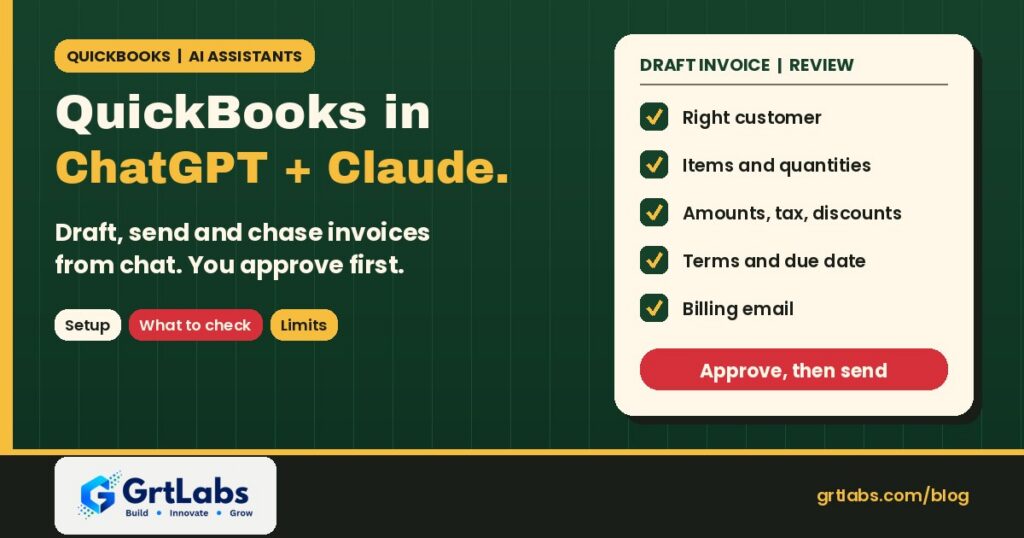
QuickBooks With ChatGPT and Claude: What the Connector Does and What to Check
QuickBooks With ChatGPT and Claude: What the Connector Does and What to Check https://grtlabs.com/wp-content/uploads/2026/11/featured-quickbooks-chatgpt-claude-1-1024x538.jpg 1024 538 Nadeem Shaikh https://secure.gravatar.com/avatar/459d5135d86aff60790fdf4d25ee6958e526211d5cd43d190b1516158cf9feba?s=96&d=mm&r=gYes, you can now run QuickBooks Online from ChatGPT or Claude. Intuit’s official QuickBooks connector lets you create estimates and invoices from your live customer and product lists, send them, send reminders on overdue invoices and share payment links, all from a chat. Payments collected through QuickBooks Payments are recorded in your books. The assistant drafts; you review and approve before anything goes to a customer. It is a real time saver for everyday billing, but it does not replace an accounts payable process, approval rules across a team, or connections to your other systems.
This guide is for small business owners, bookkeepers and accounts receivable staff who already use QuickBooks Online. It covers what the connector does, how to set it up, what to check before you send anything, and where a custom AI workflow still makes sense. Feature details below come from Intuit’s own pages, linked in each section. Intuit says the capabilities are expanding, so check its help pages for the current list.
What the QuickBooks connector in ChatGPT and Claude can do
According to Intuit’s What’s new with QuickBooks Online page, you can connect QuickBooks to ChatGPT or Claude to create estimates, email invoices, send automatic reminders and share payment links, with payments recorded in your books automatically. Intuit lists it for paid QuickBooks Online plans, for eligible merchants with QuickBooks Payments turned on.
| Task | How it works in chat |
|---|---|
| Create an invoice | Describe it in plain words; the assistant pulls the customer and items from QuickBooks and shows a draft |
| Edit before sending | Ask for changes in the same chat, such as a new line item or different payment terms |
| Send and get paid | After you approve, the invoice goes out with an online payment link and syncs to QuickBooks |
| Estimates | Build a quote the same way, then convert it to an invoice when the customer accepts |
| Follow-ups | Ask which invoices are overdue and send a reminder for a specific one |
| Customers and products | Add a new customer or product or service from the chat |
The key point: an invoice created in the chat is a real QuickBooks invoice, not text you copy over later. That is why the review step matters.
How to connect QuickBooks to Claude or ChatGPT
Intuit’s step-by-step guide describes a short setup for each assistant:
- Claude: open Claude, go to Connectors, find Intuit QuickBooks, click Connect, sign in with your Intuit account and approve the connection.
- ChatGPT: open ChatGPT, go to Apps, find Intuit QuickBooks, click Connect, sign in with your Intuit account and approve the connection.
- Pick the right company if your Intuit login has more than one QuickBooks company.
- Grant only what you need where the connection screen lets you choose permissions.
- Try it on a test customer first before you send anything to a real one.
Intuit notes that if you need to reconnect, you should disconnect fully, wait a moment, then connect again. Connecting the AI platform may also depend on your plan with that platform, so check your ChatGPT or Claude account settings.
What to check before anything is sent
Intuit says the assistant shows you a draft first and nothing goes out without your approval. Use that step properly. Before you approve an invoice or estimate, check:
- Customer: the right record, especially when two customers have similar names.
- Items and quantities: the right product or service from your list, not a new one the assistant created by mistake.
- Amounts, tax and discounts: match what you agreed with the customer.
- Terms and due date: your standard terms unless you meant to change them.
- Email address: the billing contact, not an old or personal address.
- Memo and description: nothing internal or confidential that the customer should not see.
Give the assistant everything it needs so it guesses nothing: the exact customer name as it appears in QuickBooks, each item, quantity, rate and the terms. Vague requests produce drafts you have to fix.
Who should use it, and how
- Owner-operators who invoice a handful of customers a week and want it done from the phone or between jobs.
- Bookkeepers who want quick answers such as which invoices are overdue, then send reminders after a check.
- Small AR teams who agree on a simple rule: the assistant drafts, a named person approves and sends.
Set a few house rules before the whole team starts using it: who may send invoices from chat, which customers or amounts always need a second look, and how corrections are handled. If a sent invoice is wrong, fix or void it in QuickBooks as you normally would.
Risks to keep in mind
- Wrong record, real invoice. Because drafts are real QuickBooks records, a mistake that gets approved goes to a customer.
- Shared access. Anyone who can use the connected chat account can act in your books within the permissions you granted. Do not connect QuickBooks to a shared or personal login.
- Instructions hidden in content. If you paste emails or documents into the same chat, they can contain text that tries to steer the assistant. Read our guide to prompt injection protection.
- No team approval chain. The connector is built for one person approving in a chat, not multi-step approval by amount or department.
- Regions and plans. Availability depends on your QuickBooks plan, your country and QuickBooks Payments eligibility. Check Intuit’s help pages for your account.
Where a custom AI workflow still fits
The connector handles invoices you send. Many finance teams have bigger problems around it:
| Need | Why the connector alone is not enough |
|---|---|
| Vendor bills arriving by email and PDF | That is accounts payable intake: reading, coding and approving bills. See automate invoice processing with AI. |
| Matching payments to invoices across bank and processor data | See AI invoice reconciliation for how matching and exception review work. |
| Invoicing from a CRM, job system or project tool | A workflow can create invoices when a job closes, using rules you set, instead of someone typing a request. |
| Approval rules by amount, customer or department | Custom workflows can route drafts to the right approver and log who approved what. |
| High volume or batch billing | Rules-based automation is steadier than one chat request at a time. |
Our comparison of AI agents vs RPA explains when a rules-based process beats a conversational one. If you are picking a first finance project, start with the one that costs your team the most hours each month.
How GrtLabs helps finance teams use AI with QuickBooks
GrtLabs Inc is a Houston-based AI and software development company, founded in 2019. Through our AI Factory we build AI agents and automations that connect accounting tools like QuickBooks to the rest of your business: bill intake, approval routing, reconciliation exception queues and invoicing triggered from your job or CRM data. Every workflow has human approval steps where you want them and a log of what it did.
Most projects start with AI Discovery, a short engagement that maps your current billing and AP process and picks the first workflow worth automating. Houston businesses can also see our AI development company in Houston page.
Using QuickBooks and still buried in billing work? Talk to our Houston team about an AI workflow built around your books, your approvals and your systems.
Frequently asked questions
Can ChatGPT or Claude create invoices in QuickBooks?
Yes. With Intuit’s official QuickBooks connector, you can create, edit and send invoices and estimates from a chat using your live QuickBooks customers and items. Intuit says the assistant shows a draft and nothing is sent until you approve it.
How do I connect QuickBooks to Claude?
In Claude, open Connectors, find Intuit QuickBooks, click Connect, sign in with your Intuit account and approve the connection. In ChatGPT, the same steps start from Apps.
Does the QuickBooks connector record payments?
Intuit says payments collected through QuickBooks Payments are recorded in your books automatically. Payment links need an eligible QuickBooks Payments account.
Is my QuickBooks data used to train AI models?
Intuit states that QuickBooks data accessed through the connector uses a secure, authenticated connection and is not used to train AI models. Review Intuit’s privacy policy and your AI platform’s settings for full details.
Can the connector process vendor bills?
The connector is aimed at invoicing, estimates, reminders and payment links. Reading and approving vendor bills from email and PDFs is accounts payable work, which usually needs a separate document processing and approval workflow.
When do I need a custom AI workflow instead?
When invoices should be created automatically from a CRM or job system, when drafts need approval by amount or department, when volume is high, or when you need matching and reconciliation across several data sources.
