
AI Document Classification: Sorting Emails, PDFs and Scans Automatically
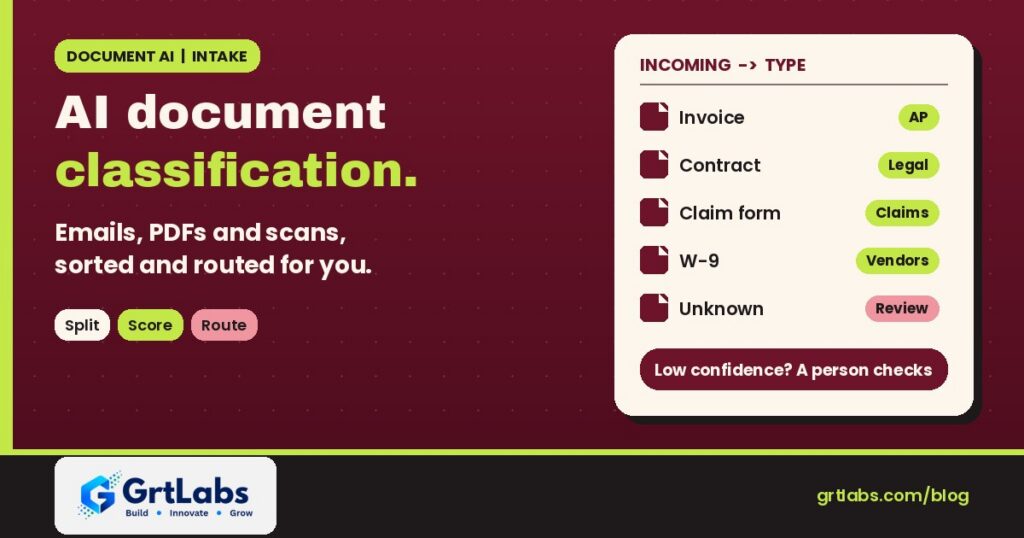
AI Document Classification: Sorting Emails, PDFs and Scans Automatically https://grtlabs.com/wp-content/uploads/2026/11/featured-ai-document-classification-1024x538.jpg 1024 538 Nadeem Shaikh https://secure.gravatar.com/avatar/459d5135d86aff60790fdf4d25ee6958e526211d5cd43d190b1516158cf9feba?s=96&d=mm&r=gAI document classification is the step that looks at an incoming email, PDF or scan and decides what it is: an invoice, a purchase order, a W-9, a lease, a claim form, a delivery receipt. The model reads the words and the page layout together, returns a document type with a confidence score, and that label decides where the file goes next. High-confidence files move on automatically. Low-confidence or unknown files go to a person. Done well, it removes the manual sorting that sits in front of almost every back-office process.
This guide is for operations, finance and back-office leads who receive a steady stream of mixed documents and want to stop sorting them by hand. It explains how AI decides which type a document is, how to handle files that contain several documents, how to set confidence thresholds, and how to roll it out without losing anything.
What AI document classification does
Classification answers one question: what kind of document is this? It does not pull out the invoice number or the total. That is extraction, the next step. Classification comes first because each document type needs different handling:
- An invoice goes to accounts payable and its extraction model
- A signed contract goes to legal and the contract repository
- A certificate of insurance goes to the vendor compliance file
- A customer complaint letter goes to the service queue
- Anything the system has never seen before goes to a person
In short, classification is the traffic cop of intelligent document processing. If it gets the type wrong, every step after it works on the wrong instructions.
How AI decides which type a document is
Older systems sorted documents with fixed rules: if the subject line says “invoice”, or the file comes from a certain sender, put it here. Rules break as soon as a vendor changes a template or a customer forwards a scan with no subject line. Modern classifiers look at the document itself, using three kinds of signals at once:
| Signal | What the model notices | Example |
|---|---|---|
| Words | Key terms and phrases anywhere on the page | “Bill to”, “Amount due”, “Policy number”, “Lessee” |
| Layout | Where things sit and how the page is structured | A table of line items near the bottom, a header block with a logo and address |
| Context | Page count, metadata and where the file came from | The mailbox it arrived in, the sender’s domain, the file name |
Microsoft’s documentation describes its custom classification models this way: deep-learning models that combine layout and language features, and that classify an input file one page at a time. Google Document AI offers a similar custom classifier processor. Both return a confidence score with each result, which is what makes safe automation possible.
There are two common ways to build a classifier today:
- A trained classifier. You give it labeled examples of each document type. Microsoft, for example, requires at least two classes and at least five samples per class to train. It is fast and consistent once trained.
- A large language model with instructions. You describe each type in plain words and ask the model to pick one. It needs few or no examples and handles odd documents well, but it is slower per page and needs careful testing so it gives the same answer every time.
Many production systems use both: a trained classifier for the high-volume types and a language model as a second opinion on the files the first one is unsure about.
When one file holds several documents
Real mail is messy. A scanned batch may hold twenty invoices in one PDF. A loan or onboarding package may contain an application, a pay stub and a bank statement. A classifier that labels the whole file as one type will get these wrong.
The fix is splitting: the system classifies each page, then groups pages into separate documents where the type changes or a new document starts. Microsoft’s classifier can identify multiple documents, or multiple copies of the same document, inside one file and returns page ranges for each. Note that in its current API version splitting is off by default and has to be turned on. Google has a separate custom splitter for the same job. If your intake includes batch scans, test splitting early. It is often where accuracy problems hide.
Setting confidence thresholds and human review
A classifier never knows for certain. It gives a best guess and a confidence score. Your rules decide what happens with that score:
| Confidence | What happens | Why |
|---|---|---|
| High | Route automatically to the next step | Most volume, no human time |
| Medium | Route, but flag for a quick check | Catch near-misses before they cause trouble |
| Low or no match | Send to a review queue | Unknown or unusual documents get human eyes |
Do not pick thresholds by guessing. Run a few hundred of your own real documents through the classifier, look at where the wrong answers fall on the confidence scale, and set the line above them. Different document types can have different lines: a misfiled marketing flyer costs little, a misfiled legal notice can cost a lot.
Every correction a reviewer makes is useful. Save it, and use the corrected examples to retrain or improve the classifier on a regular schedule.
Where the classified document goes next
The label is only valuable if it triggers the right action. A typical flow looks like this:
- A document arrives by email, upload, scanner or shared folder
- The system splits it into separate documents if needed
- Each document gets a type and a confidence score
- High-confidence documents go to the right extraction model, such as the one described in how IDP reads a form
- Extracted data is checked against business rules and written into your ERP, CRM, accounting or claims system
- Low-confidence items wait in a review queue with the AI’s best guess shown
For finance teams, invoices usually flow on into an AI invoice processing workflow. For contracts and policies, the classified files can also feed a searchable knowledge base built with retrieval-augmented generation (RAG).
Common mistakes to avoid
- Too many look-alike types. If two classes are hard for a person to tell apart, the model will struggle too. Merge them and separate them later with a field check.
- No “other” path. Every intake gets junk mail, duplicates and surprises. Give them a place to go instead of forcing a wrong label.
- Training only on clean files. Include phone photos, skewed scans, faxes and forwarded email chains if those are what you actually receive.
- Testing on the same files you trained on. Keep a separate test set so accuracy numbers mean something.
- Ignoring format mix. If you receive Word and Excel files as well as PDFs, include them in training. Microsoft’s guidance recommends at least one sample of each format.
- No audit trail. Log the label, the confidence and who changed it. When something goes missing, you need to find out why.
How to start an AI document classification project
- List the document types you receive today and roughly how they arrive
- Pull a sample set of real documents for each type, including the messy ones
- Decide where each type should go and what happens to unknowns
- Pick an approach: trained classifier, language model, or both
- Test on documents the system has not seen and set thresholds per type
- Run it next to your current manual process for a few weeks before switching over
- Watch the review queue and retrain on corrections
Start with the inbox or folder that eats the most staff time. A narrow first win is easier to measure and easier to trust than an attempt to sort everything at once.
How GrtLabs builds document classification
GrtLabs Inc is a Houston-based AI and software development company, founded in 2019. Through our AI Factory we build Document Intelligence systems that classify, split and extract data from emails, PDFs and scans, then hand the results to automations that update your business systems. Every build includes review queues, confidence thresholds you control and a log of every decision.
Most projects start with AI Discovery, where we map your intake, gather sample documents and agree on the first document types to automate. Houston businesses can also see our AI development company in Houston page.
Still sorting documents by hand? Talk to our Houston team about AI document classification built around your documents and your systems.
Frequently asked questions
What is AI document classification?
AI document classification automatically identifies what type a document is, such as an invoice, contract, claim form or ID, by reading its text and layout. The label and a confidence score decide where the document goes next.
How is document classification different from data extraction?
Classification decides what kind of document it is. Extraction pulls specific fields, such as the invoice number or total, out of it. Classification usually runs first so the right extraction model is used.
How many examples do I need to train a document classifier?
It depends on the tool. Microsoft’s Document Intelligence custom classifier needs at least two document types and at least five samples per type. More varied, real-world samples usually give better results.
Can AI split a PDF that contains several documents?
Yes. Classifiers and splitters can label each page and group pages into separate documents, returning page ranges for each. Test this on your own batch scans, because it is a common source of errors.
What happens when the AI is not sure about a document?
A well-built system sends low-confidence or unknown documents to a human review queue with the AI’s best guess shown. Reviewer corrections are saved and used to improve the classifier.
Should I use a trained classifier or a large language model?
A trained classifier is fast and consistent for high-volume, well-defined types. A large language model handles unusual documents with few examples. Many teams use both, with the language model as a second check on uncertain files.
